I. Outlook Whitelist Settings
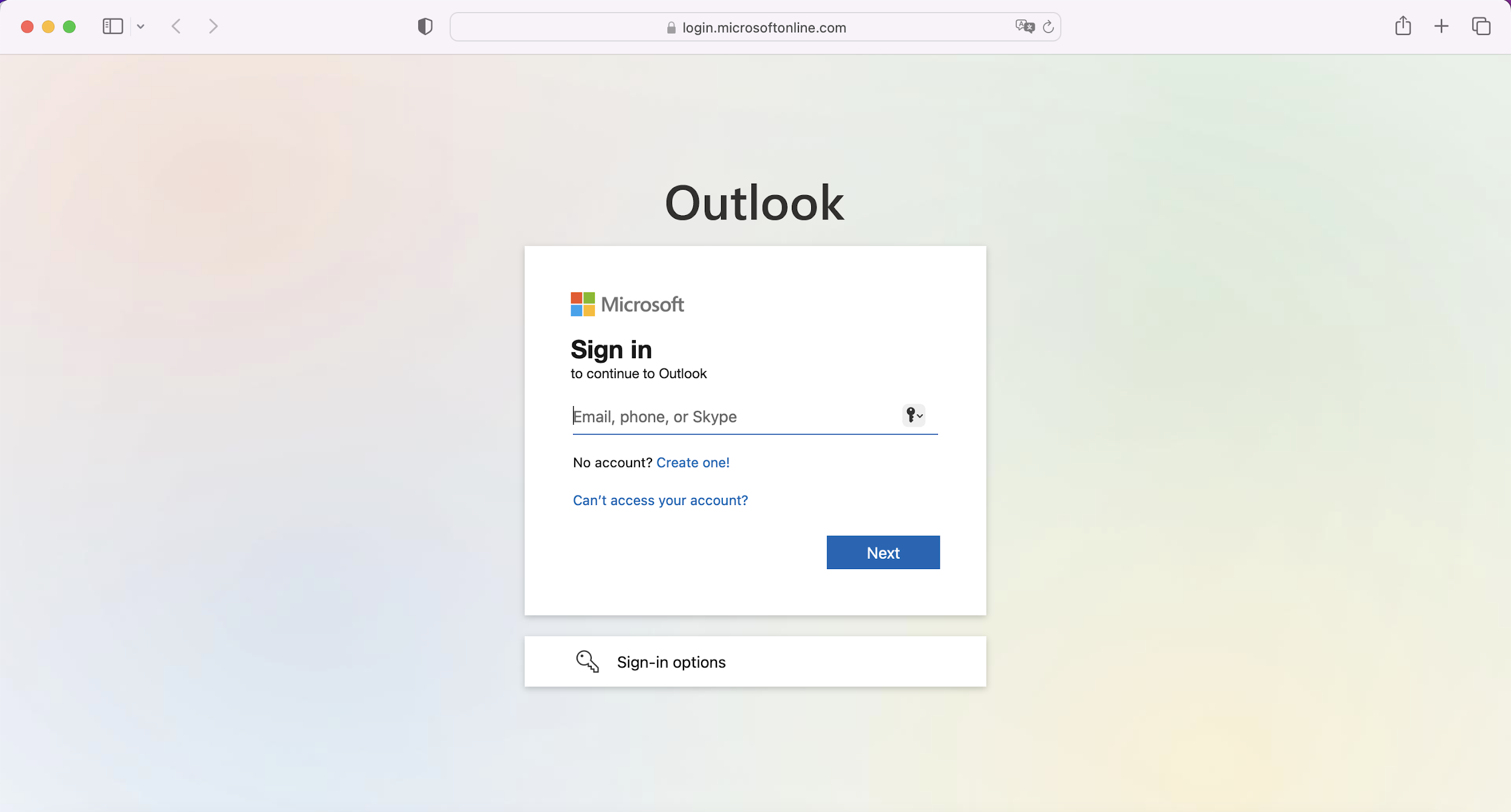
1. Login to Outlook
URL: https://outlook.office365.com
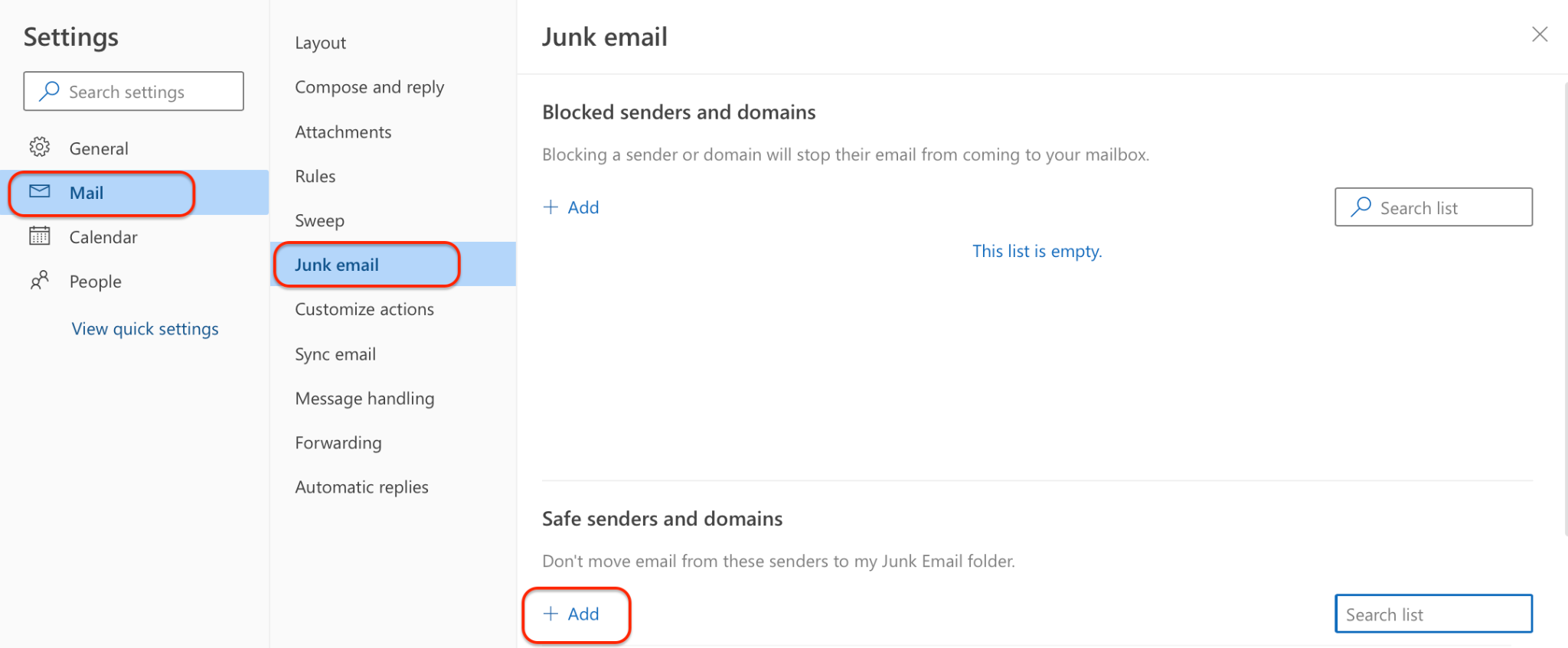
2. Add OrangeX.com domains to the whitelist according to the following instructions:
Instructions: [Settings ➡️ View all Outlook settings ➡️ Mail ➡️ Junk email ➡️ Safe senders and domains]
Whitelist for domain name:
Whitelist for email address:
Note: Once the whitelist settings have been done, please wait for 10 minutes before trying again as it may take some time for the whitelist to take effect for certain email service providers.
II. Gmail Whitelist Settings
1. Login to Gmail
URL: https://accounts.google.com/
2. Check whether Gmail has blocked the email addresses according to the following instructions:
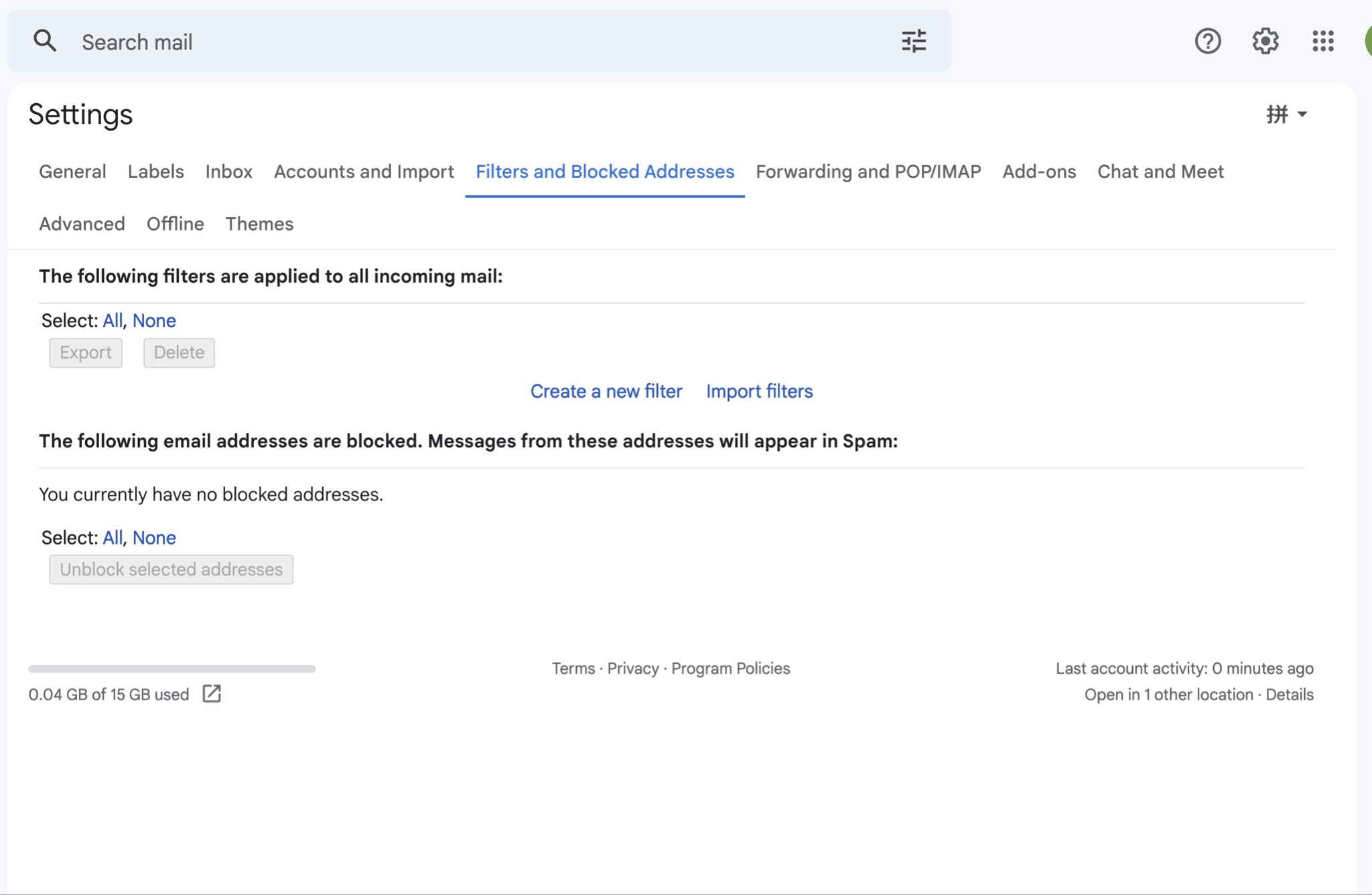
Instructions: Go to [Settings ➡️See all settings ➡️Filters and Blocked Addresses] to see if OrangeX.com emails are blocked. If they are blocked, please remove the emails and domains from the list.
Whitelist for domain name:
Whitelist for email address:
Note: Once the whitelist settings have been done, please wait for 10 minutes before trying again as it may take some time for the whitelist to take effect for certain email service providers.
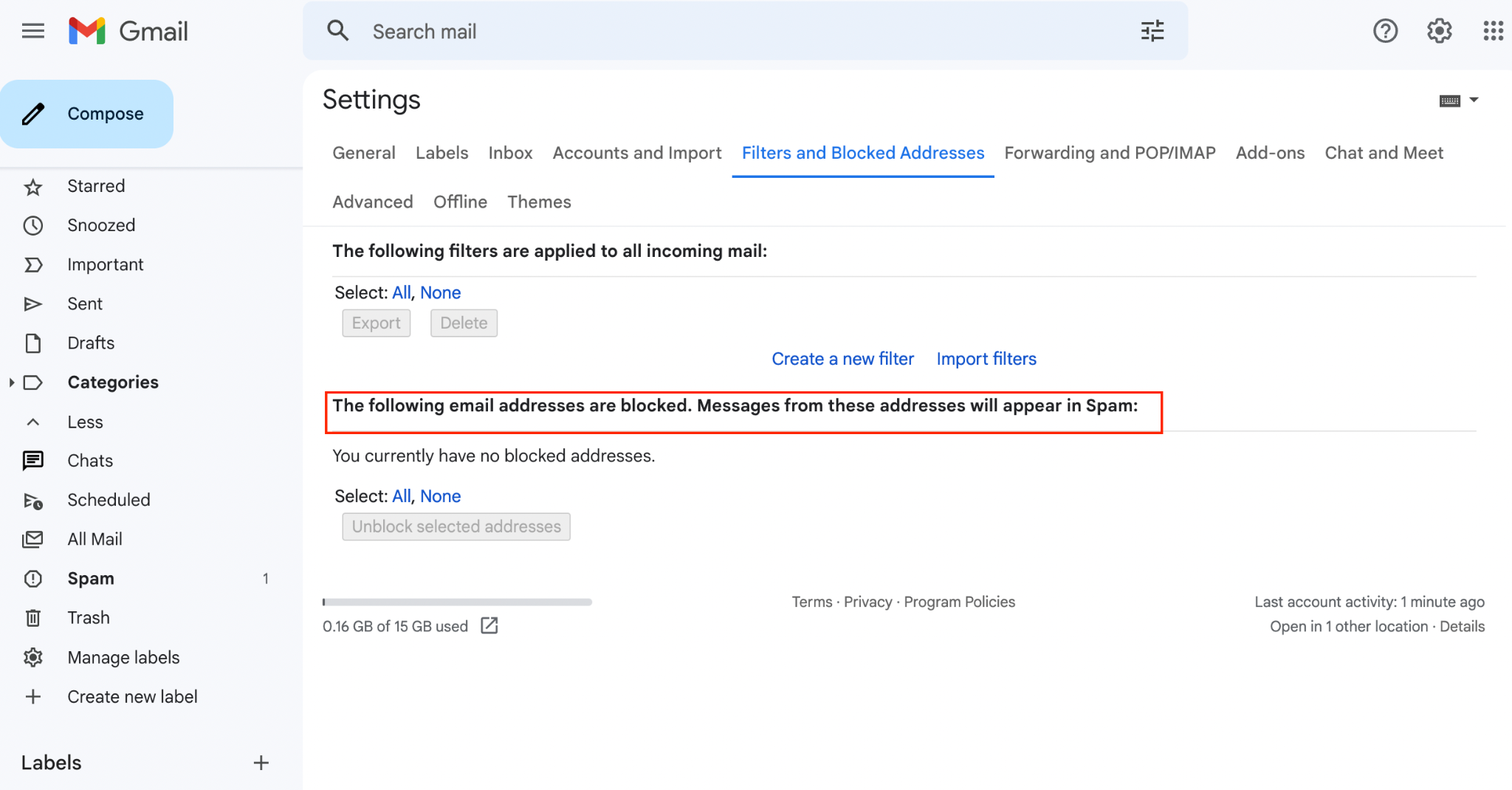
3. Go to [Filters and Blocked Addresses] and click [Create a new filter].
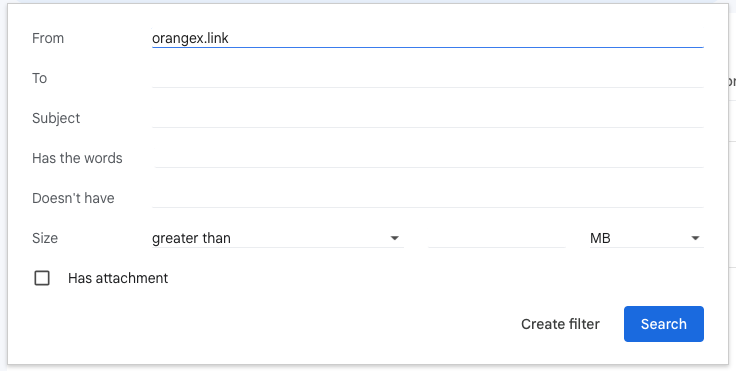
4. Fill in OrangeX.com domain names one by one In the “From” section and click [Create Filter].
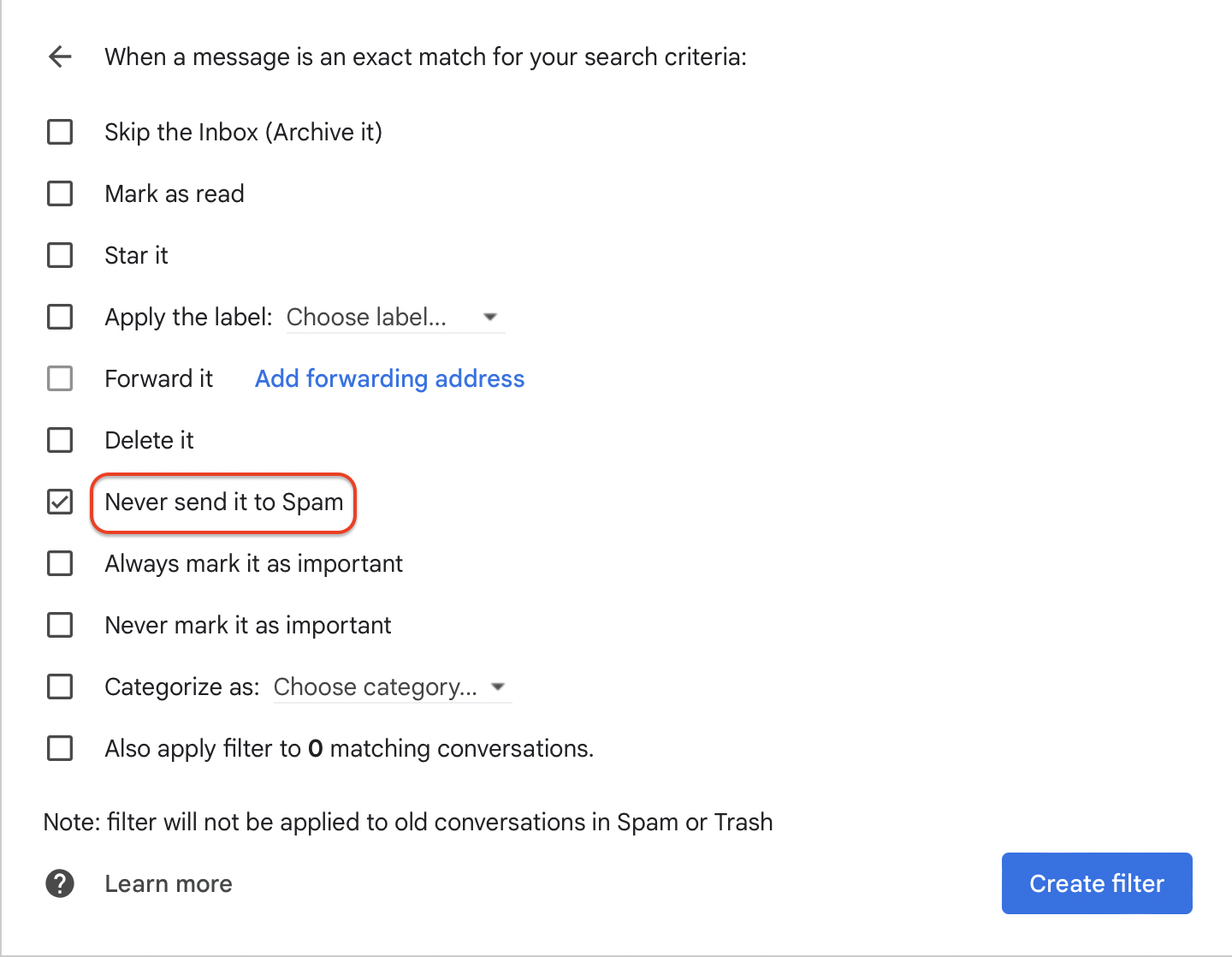
5. Tick the checkbox for "Never send it to spam" and click [Create filter].